
Apple Pay / Google pay setup
Apple Pay and Google Pay for club fee
payments
Setup guide for clubs and academies using Stats4Sport accounting
Stats4Sport · October 2026 · Applies to the Manager web app (manager.stats4sport.com/app) and the S4S User
parent app 1.7.11 or newer
1. What this gives you
Parents can pay their club fees with Apple Pay on iPhone and Google Pay on Android or in Chrome,
in addition to the payment methods you already offer. The buttons appear on the payment page that
parents open from the payment link, and in the S4S User app on the account of your club.
Payments go straight to your own merchant account at ProcessOut. Stats4Sport never holds the
money. Each club connects its own ProcessOut project, so your settlements, fees and reports stay
with you.
A successful payment is recorded in your Stats4Sport accounting automatically, labelled Apple Pay
or Google Pay, and the parent’s balance is updated.
2. What you need before you start
The settings in Stats4Sport only connect to accounts you already have with the payment provider.
Prepare these first:
• A ProcessOut project (ProcessOut is the payment platform of Checkout.com, processout.com) with
a card acquirer connected to it. From the project you need the Project ID and the Project secret. A
test project has an ID starting with test-proj_, a live project with proj_.
• For Apple Pay: Apple Pay enabled in your ProcessOut project with the Apple Pay merchant
certificate. Apple also requires the payment page domain to be registered for your merchant. The
payment page is manager.stats4sport.com, so Stats4Sport has to place Apple’s verification file for
you. Ask for it at support.edata.lt and send us the file that ProcessOut or Apple gives you.
• For Google Pay: a business profile in the Google Pay & Wallet Console with a Merchant ID. For
live payments Google must also approve the website https://manager.stats4sport.com for your
profile. Test payments work without the approval.
• An accounting currency selected in Stats4Sport accounting settings. Wallet payments are refused
until a currency is set.
• The club owner’s login. Only the owner account of the club can see and change these settings.
Assistant accounts cannot.
3. Setting it up in the Manager
Open the Manager web app at manager.stats4sport.com/app, go to Accounting, then Settings, and
find the section Accounting wallet payments. Direct link to the page:
manager.stats4sport.com/app/settings/accounting
1 Fill in the Merchant details: the merchant name parents will see in the Apple Pay and Google Pay
sheet, and your country as a two-letter code, for example LT.
2 Fill in the ProcessOut connection: Project ID, Project secret, and the environment. Choose Test for
a test project and Live payments for a live project. The secret is stored encrypted and is never
shown again; leave the field empty later to keep the saved secret.
3 In the Apple Pay box, tick the confirmation that Apple Pay setup and the domain registration are
completed with the provider, then switch Enable Apple Pay on. The two ID fields are optional and
only needed if ProcessOut gave you specific configuration identifiers.
4 In the Google Pay box, enter your Google Pay Merchant ID (required for live payments), tick the
confirmation that Google Pay setup and website approval are completed, then switch Enable
Google Pay on.
5 Click Validate connection and save. Stats4Sport checks that the Project ID and secret work. On
success the page shows Credentials checked with the date and time.
The connection check only proves that the credentials are valid. It cannot check your Apple or
Google registrations. If those are incomplete, the buttons may appear but payments will fail.
Complete the provider steps in section 2 before enabling live payments.
4. Test first, then go live
1 Connect a test project first and enable the wallets. Open a parent’s payment link on a phone and
pay a small amount. The page shows a Test payment notice and the parent’s balance does not
change.
2 When the test works, enter the live Project ID and secret, set the environment to Live payments,
enter the Google Pay Merchant ID, and save again. From then on payments are real and are
credited to the parent’s account.
5. What parents see
• On the payment page opened from the payment link, an Apple Pay button appears on iPhone and
Mac in Safari, and a Google Pay button in Chrome and on Android. The amount is filled in with the
full balance and the parent can change it.
• In the S4S User app, Apple Pay is offered on iPhone and Google Pay on Android when the parent
pays a club account, from version 1.7.11 of the app.
• The buttons only appear on devices where the wallet is set up. A phone without a card in Apple
Pay or Google Pay does not show them. The other payment methods remain available.
6. After a payment
• A completed payment appears in the accounting history with the label Apple Pay or Google Pay,
and the balance is updated. This normally takes seconds. If the provider is slow, Stats4Sport
re-checks every five minutes and completes the booking by itself.
• If the parent sees Payment is still processing, the money was submitted but not yet confirmed. The
parent should not pay again. The booking completes automatically once the provider confirms.
• Only fully captured payments are credited. A payment that was only authorised or partly captured
is not booked.
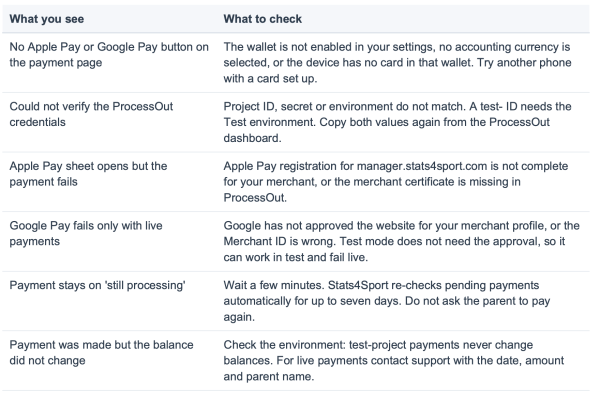
7. If something does not work
8. Good to know
• Refunds and chargebacks are handled in your ProcessOut dashboard. They are not reflected in
Stats4Sport automatically; adjust the parent’s account manually if you refund.
• Every time you save the settings a new version is kept. Payments that are still in progress keep
using the credentials they were started with, so do not revoke a secret at ProcessOut until all
pending payments have completed.
• You can switch a wallet off at any time without touching the credentials. Parents then see only your
other payment methods.
• Your mobile app subscription payments (the plans parents buy in the app) are not affected by
these settings. They continue to use the Stats4Sport account.