
Two-Factor Authentication on ‘s4s Manager’ app
-
1
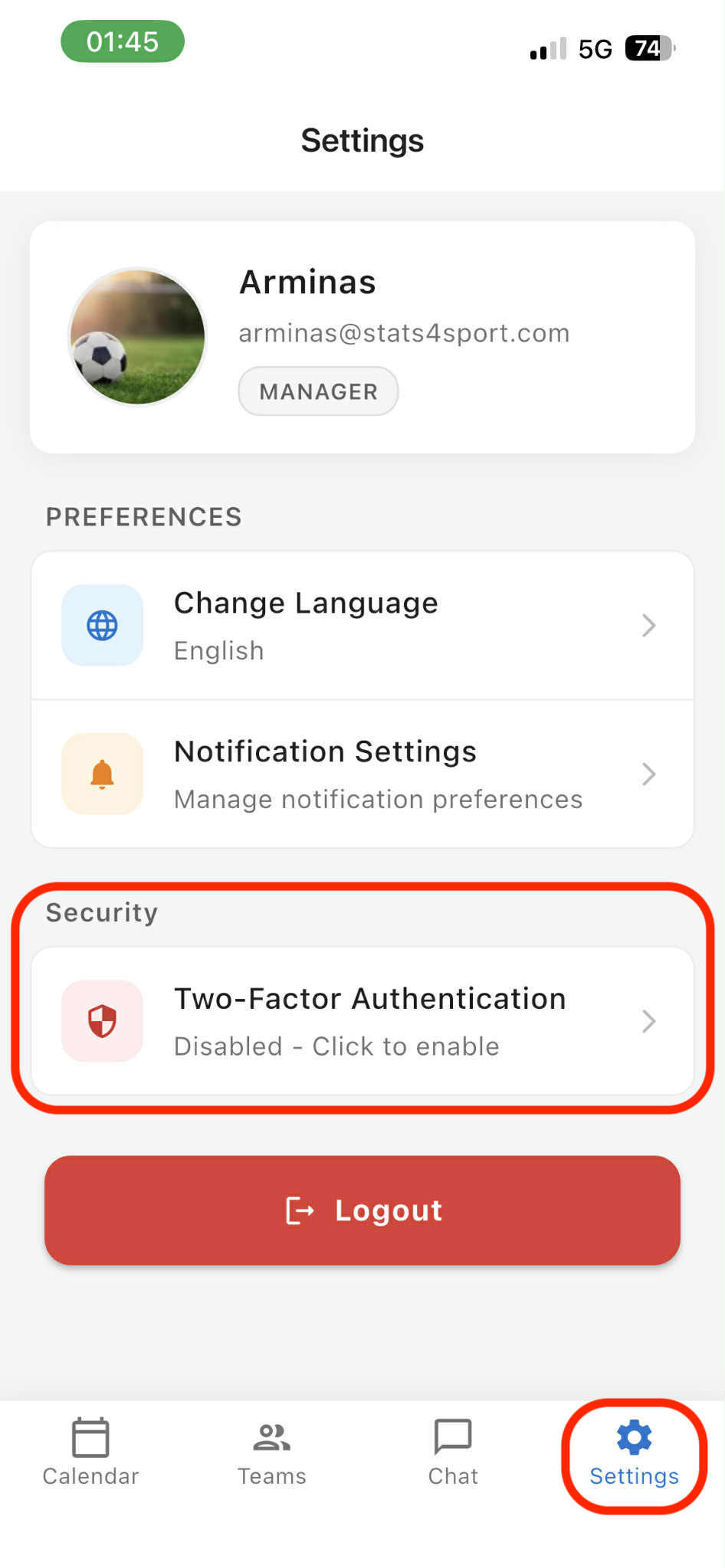
Open 's4s manager' app on your mobile device. Go to 'Settings' on the bottom menu bar. Choose 'Two-Factor Authentication'.
-
2
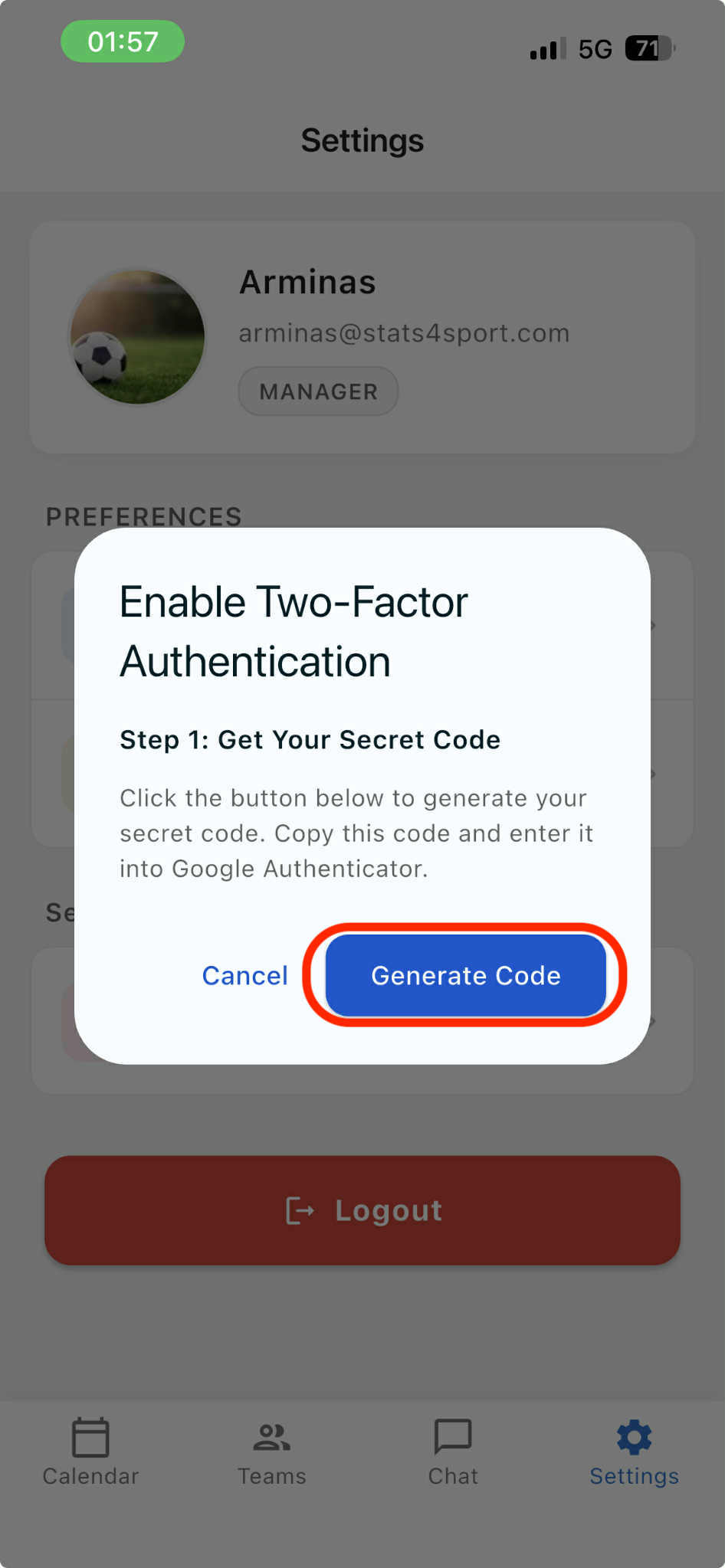
Press 'Generate Code'.
-
3
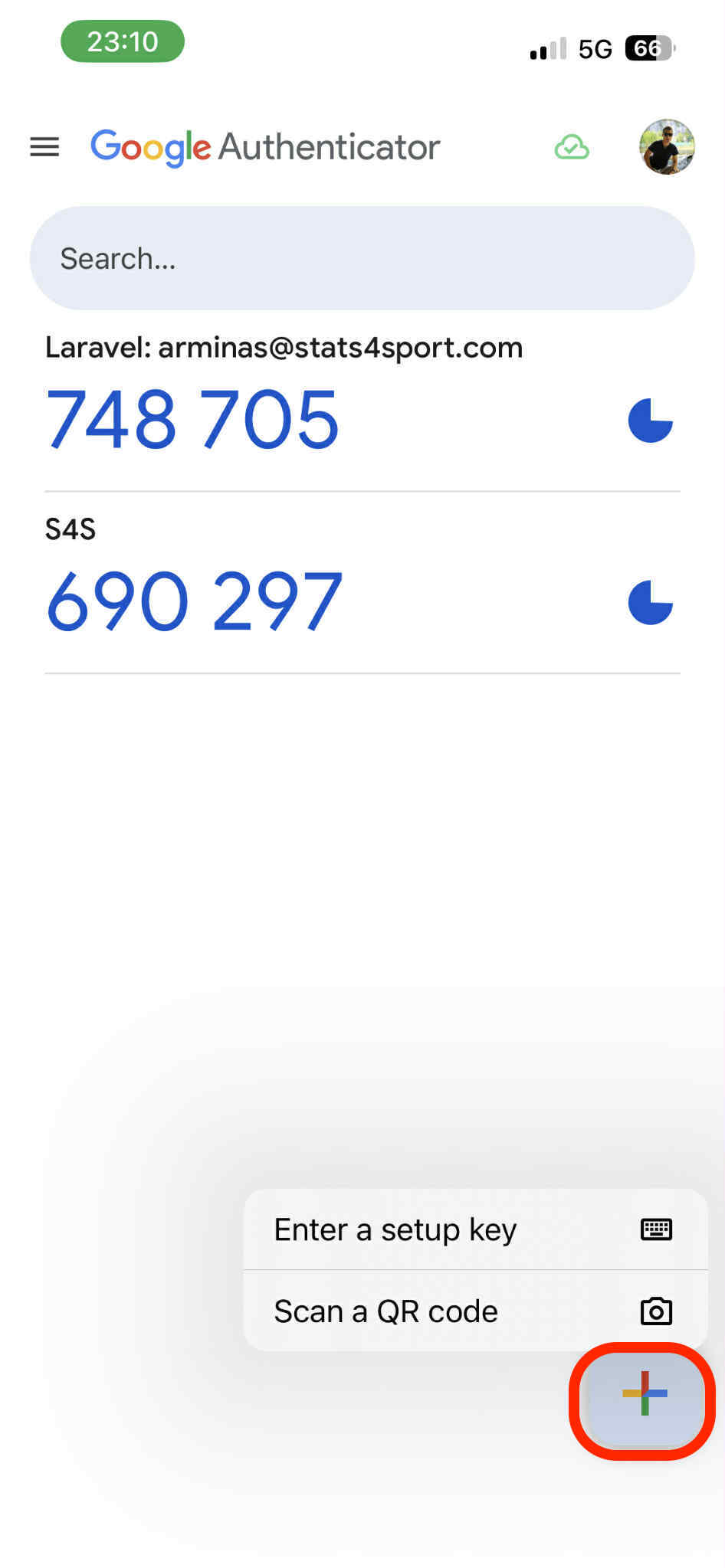
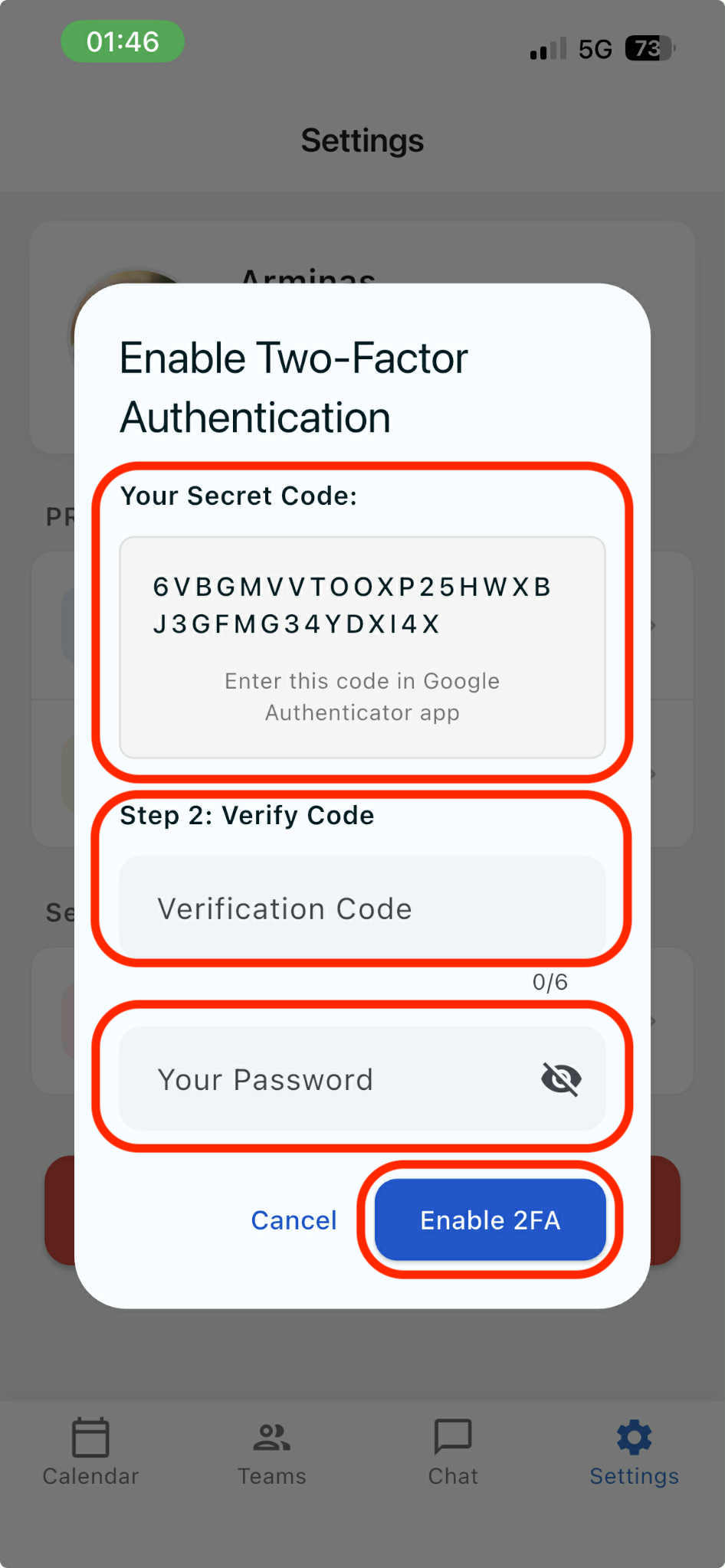
Step 1. Copy the code. Open 'Google Authenticator' app on your mobile device. Press on + at down right corner. Choose 'Enter a setup key'.
-
4
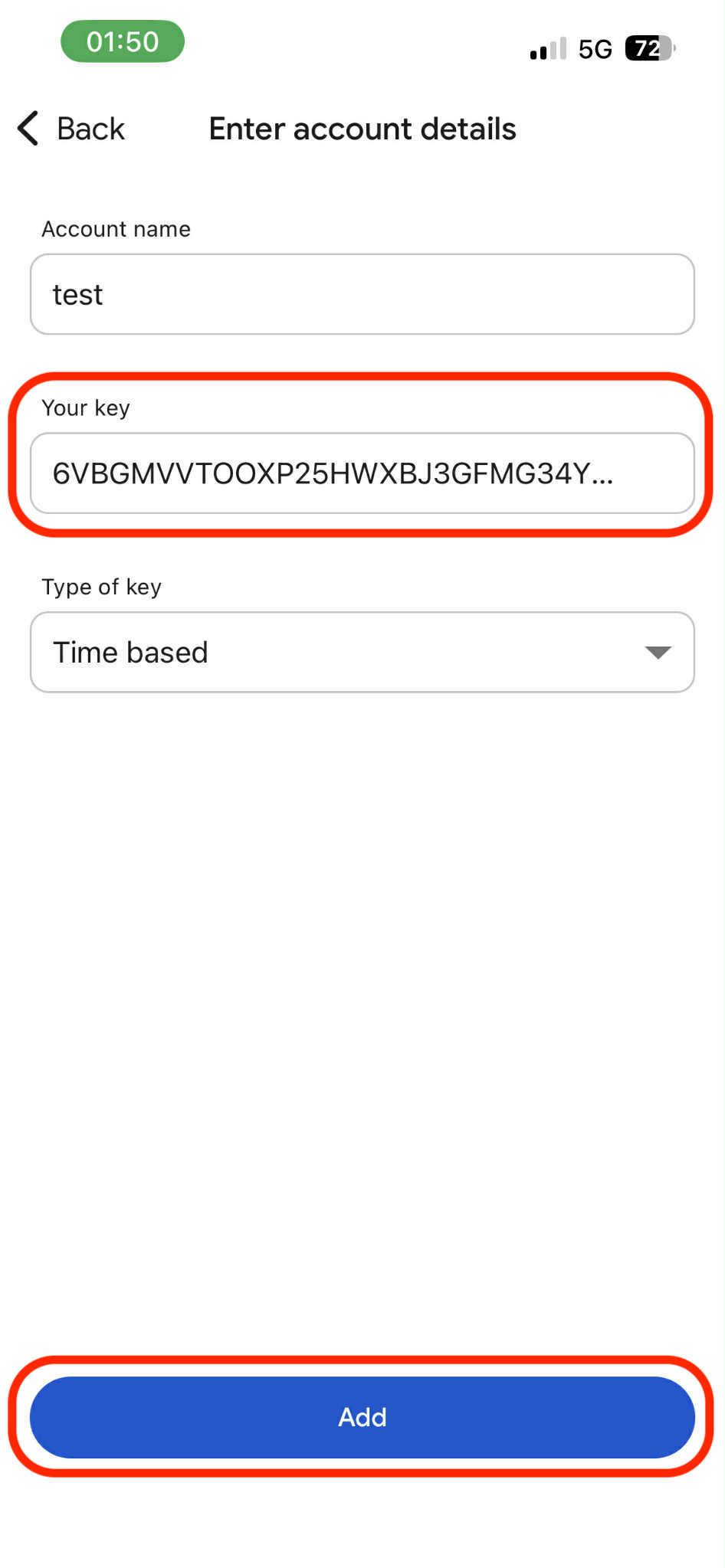
Create account by entering its name, paste the key code from 's4s manager' app and press 'Add'.
-
5
Follow step 2 on 's4s manager' app on your mobile device. Enter verification code from 'Google Authenticator app', enter your account password and press 'Enable 2FA'.
Still need help?
Tell our support team where you got stuck. Include the guide title so we can help you faster.
Contact support