
PayPal setup
-
1
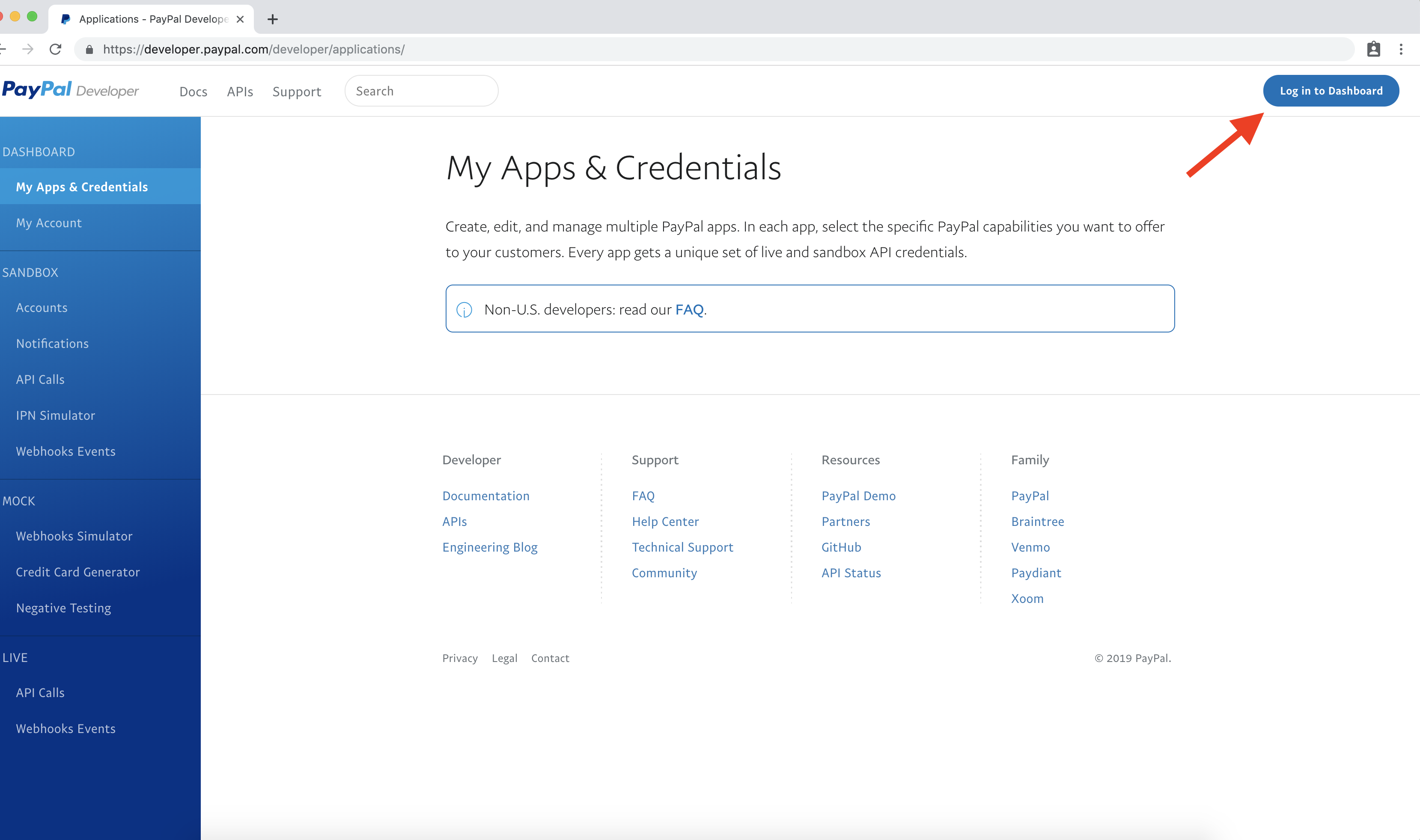
Copy this link in to browser to open PayPal developer page and log in to dashboard - https://developer.paypal.com/developer/applications/
-
2
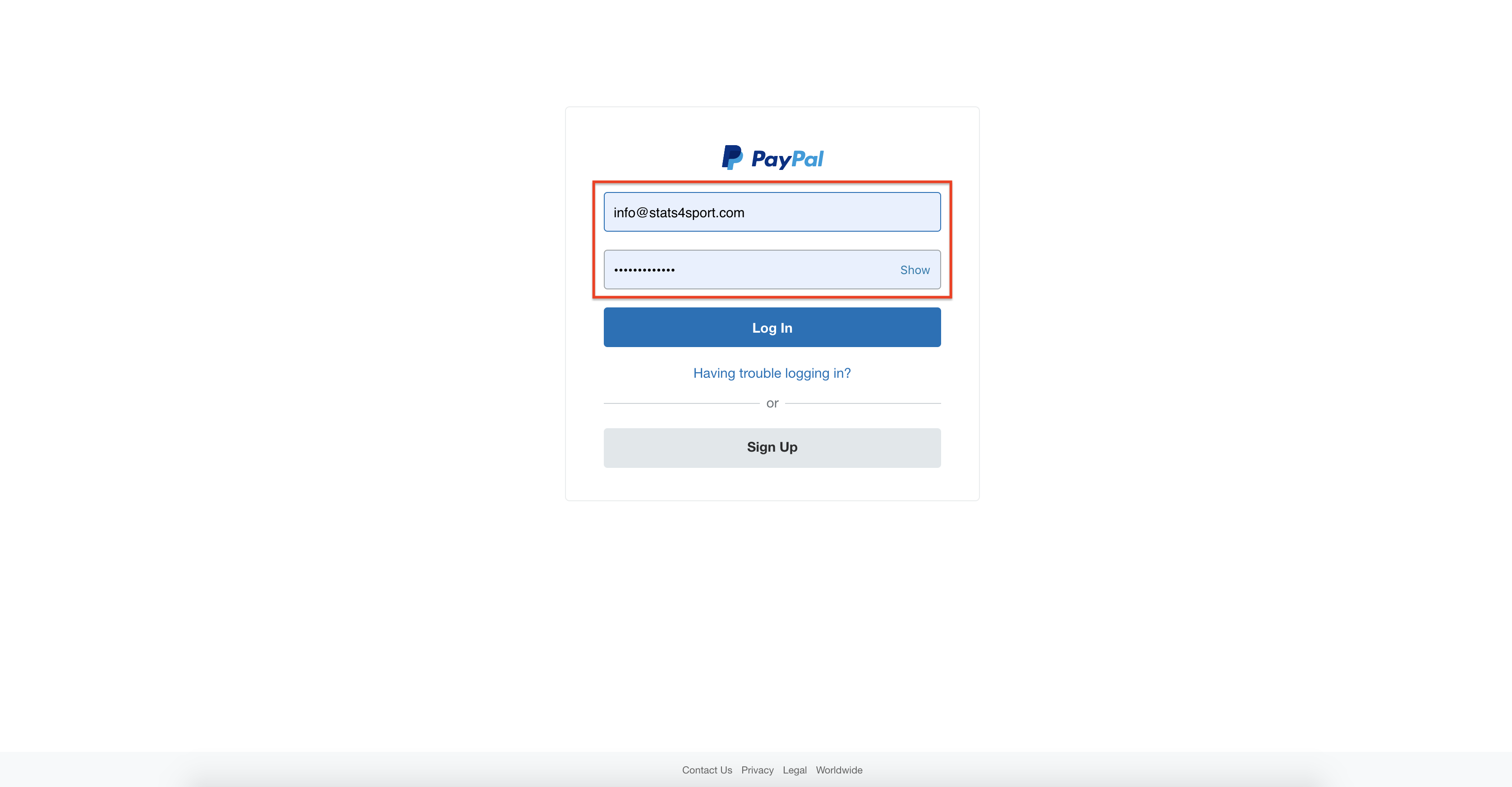
To log in use your PayPal business, if you still don't have PayPal business, you could create it here - https://www.paypal.com/us/webapps/mpp/account-selection
-
3
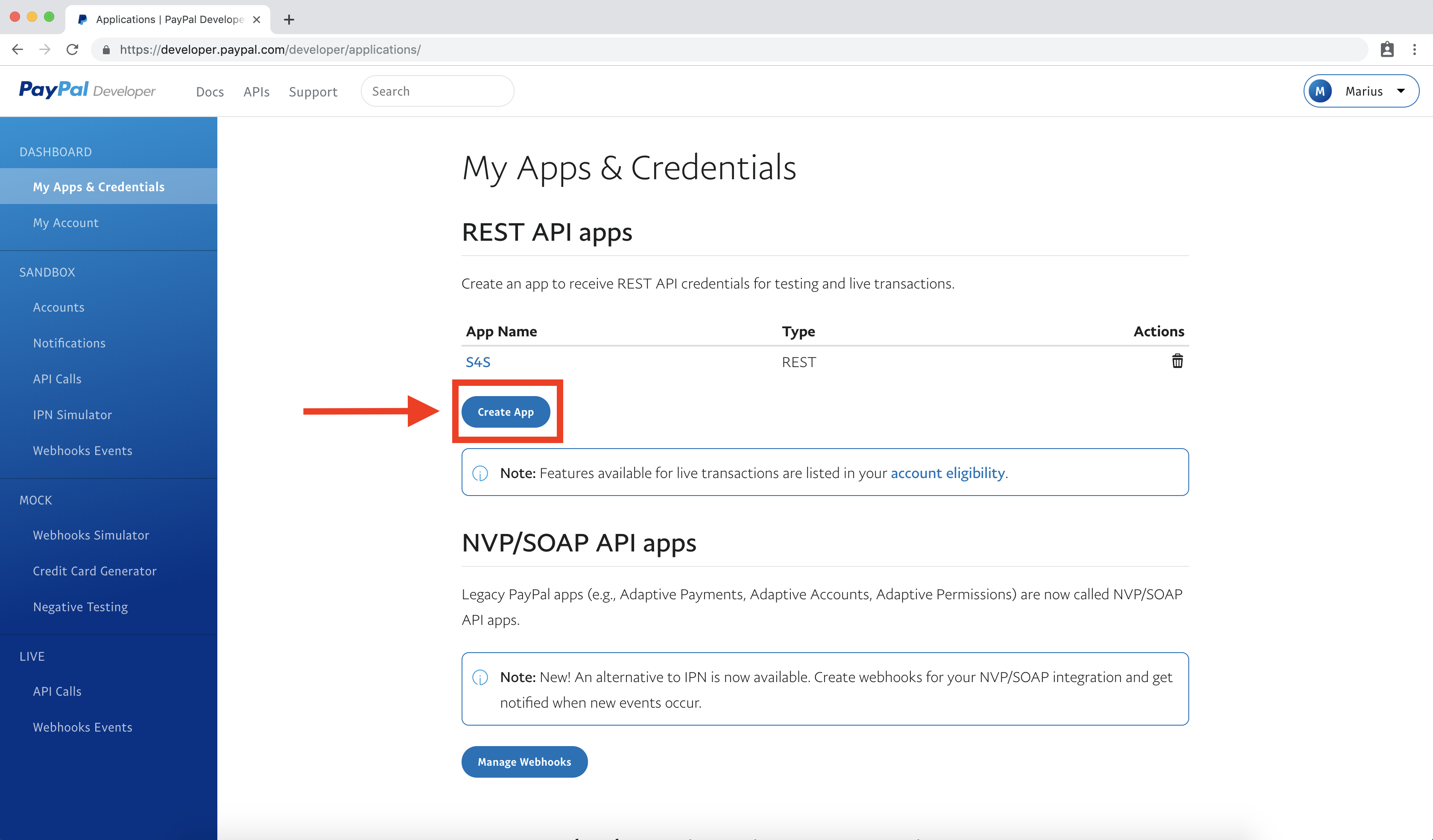
When loged in to developer account choose from the menu bar "my apps & credentials" -> create app
-
4
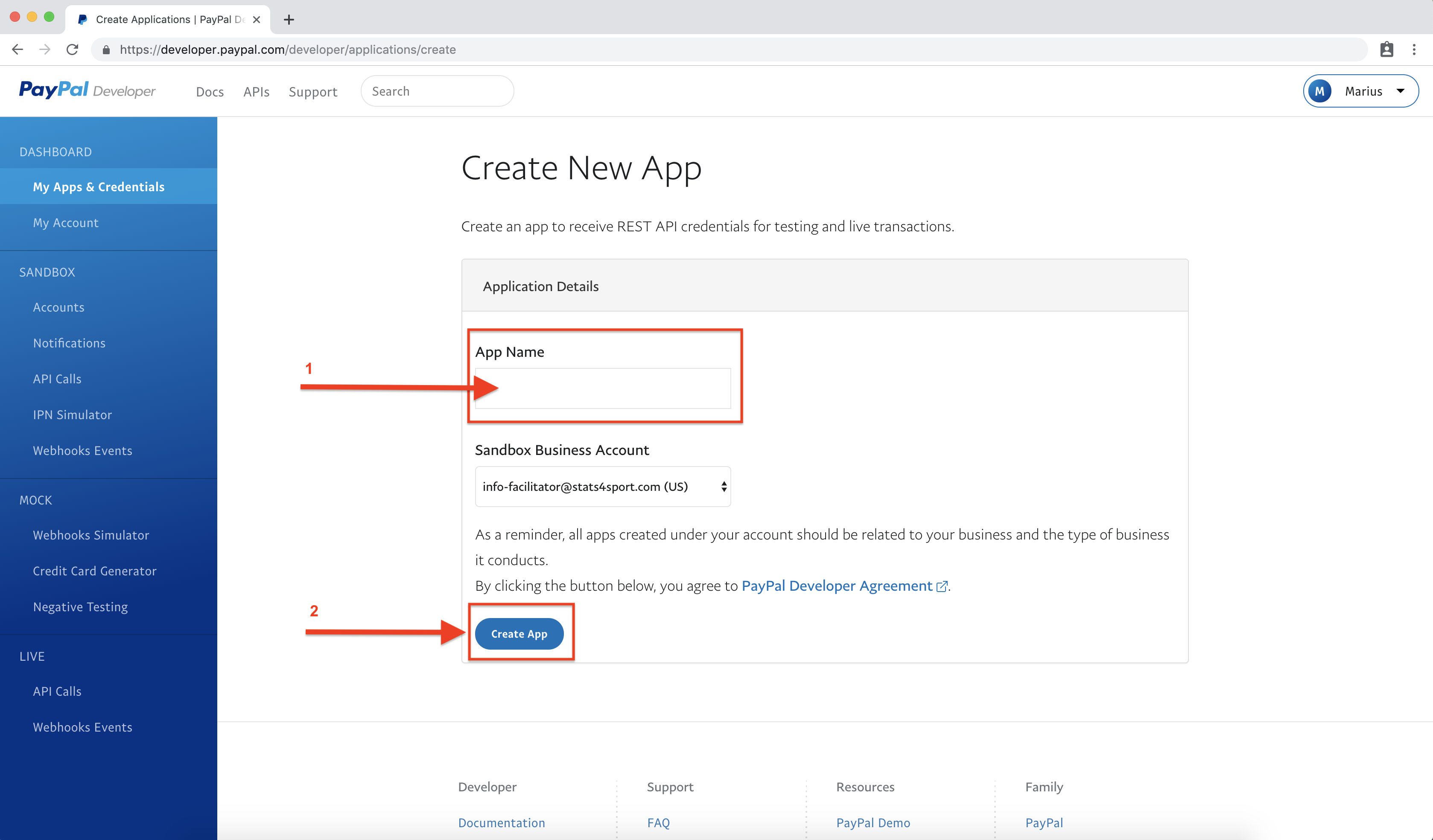
Enter your app name (name is not defined anywhere) and press "create app"
-
5
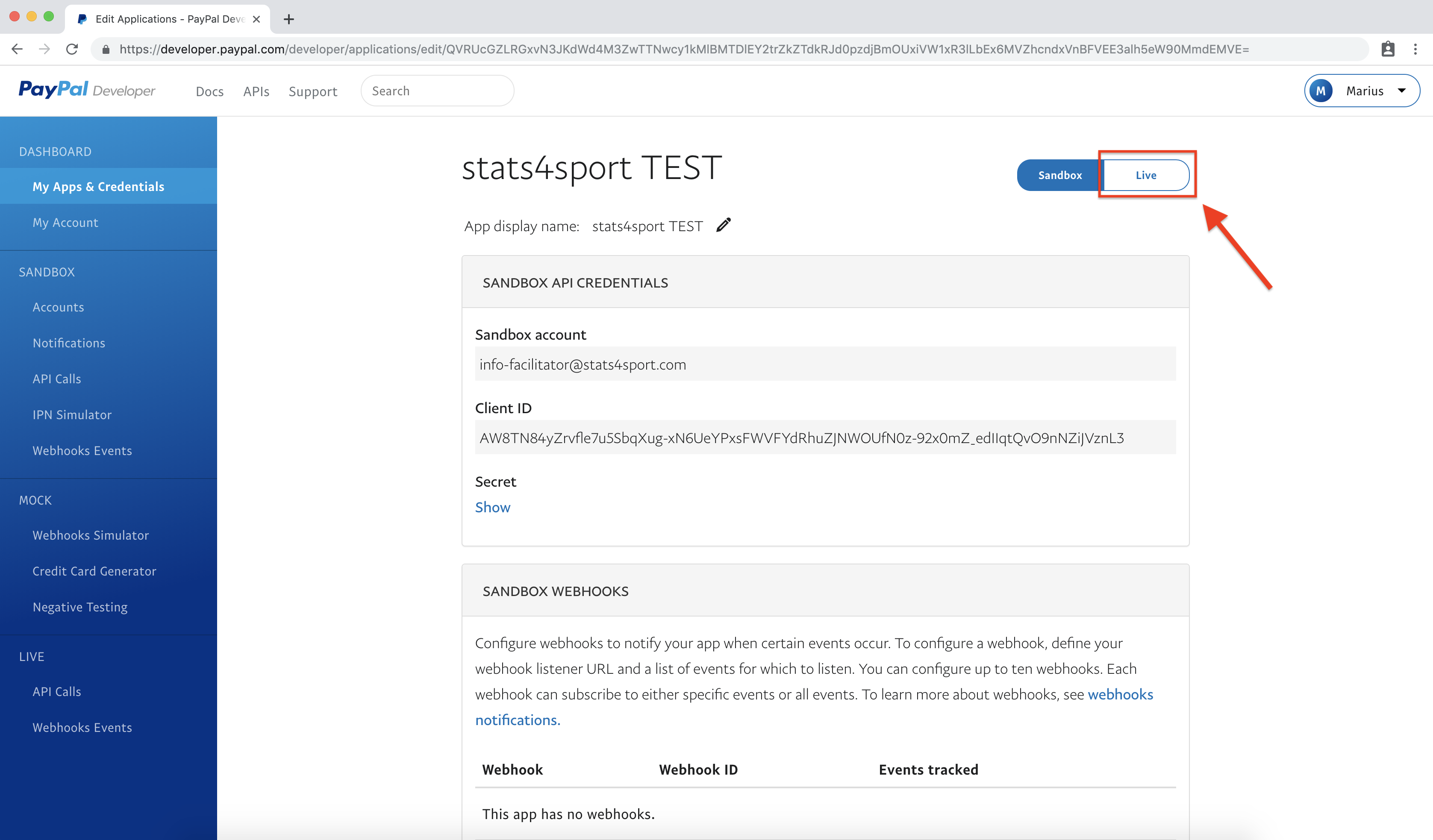
After the app was created you have to switch from "sandbox" to "live"
-
6
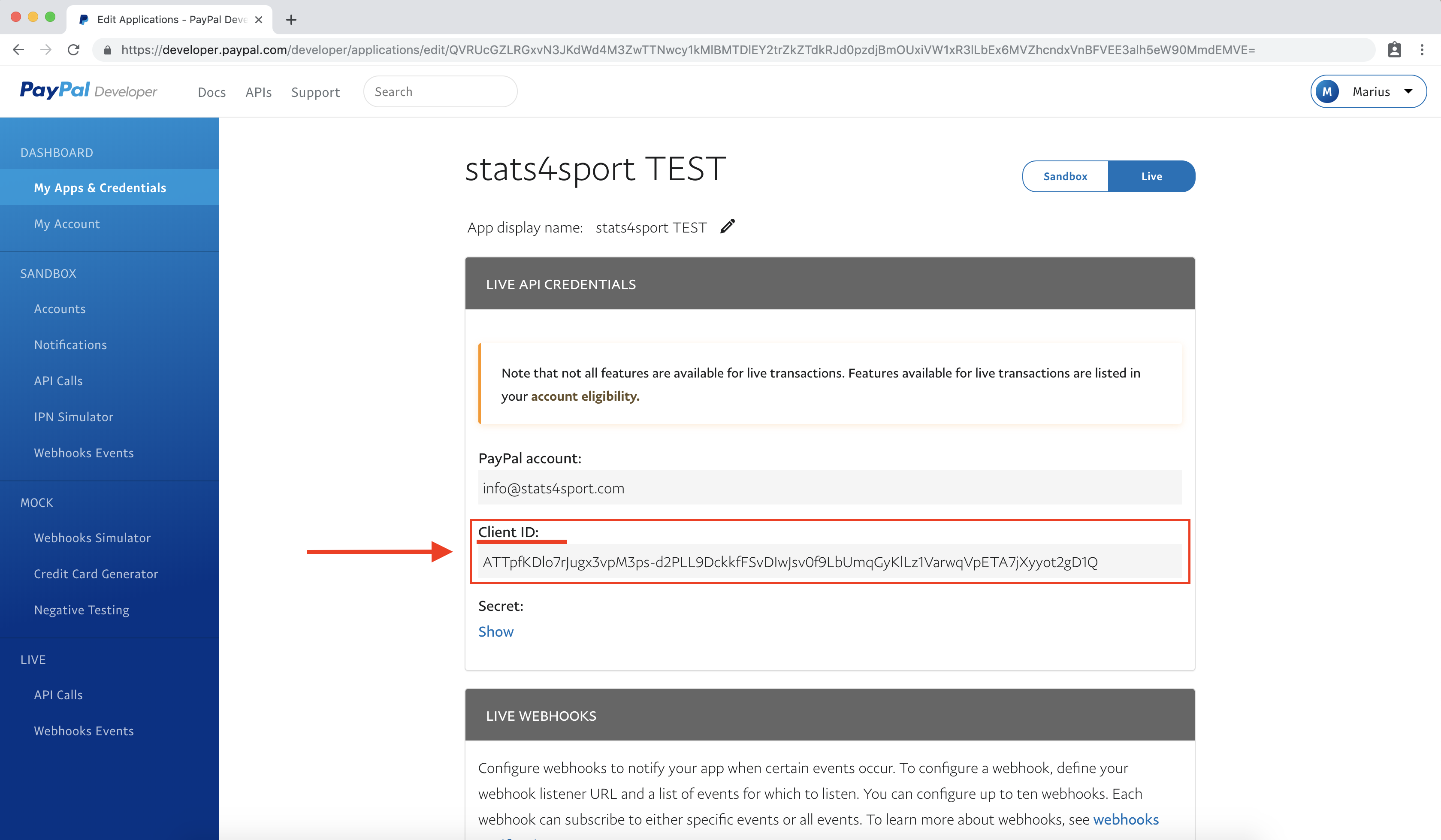
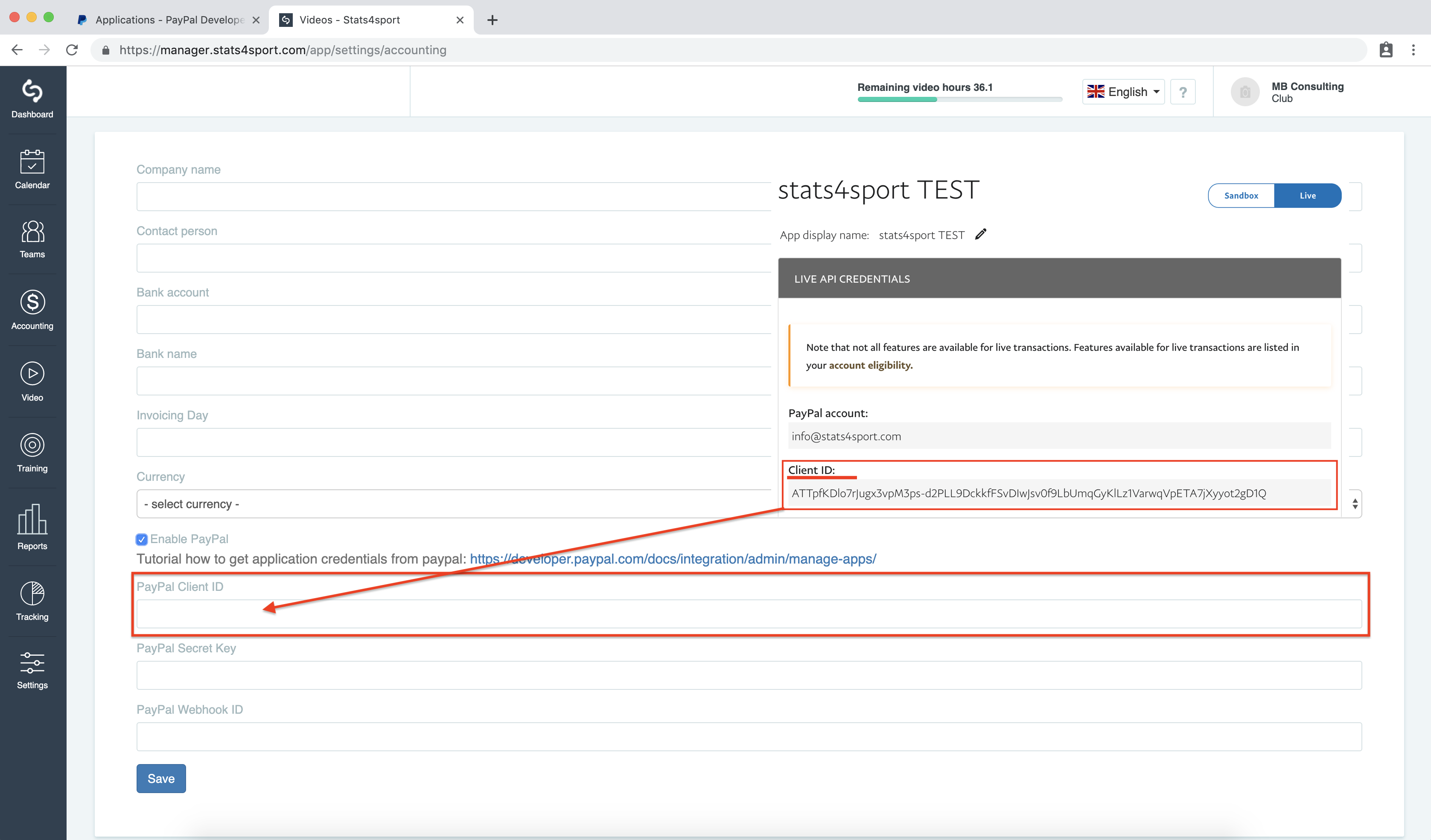
When you switched to "Live" you have to copy "Client ID" and paste it in to the stats4sport manager accounting settings, picture below
-
7
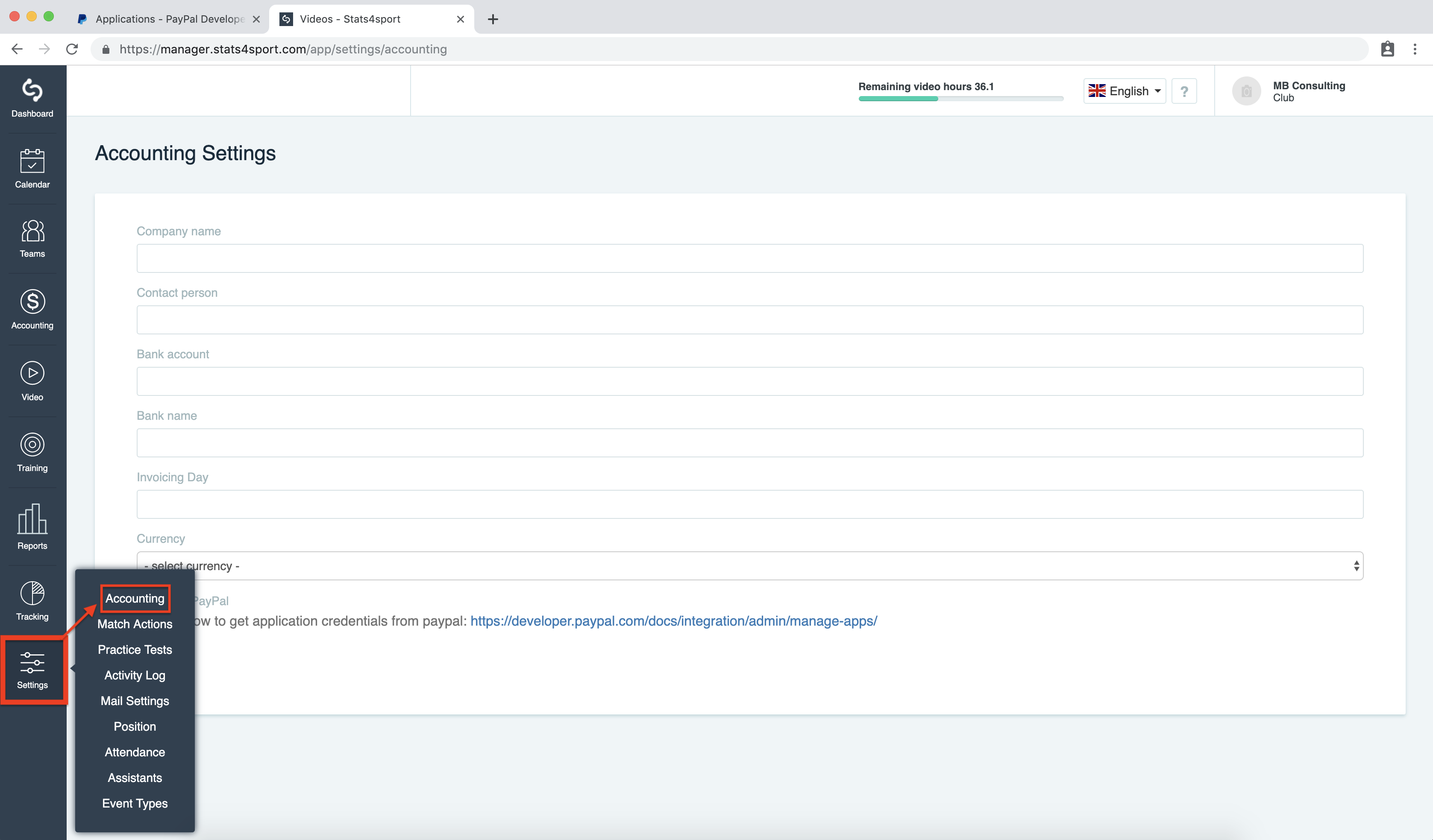
Log in to stats4sport manager then choose "Settings" from the Menu bar on the left and press on "Accounting"
-
8
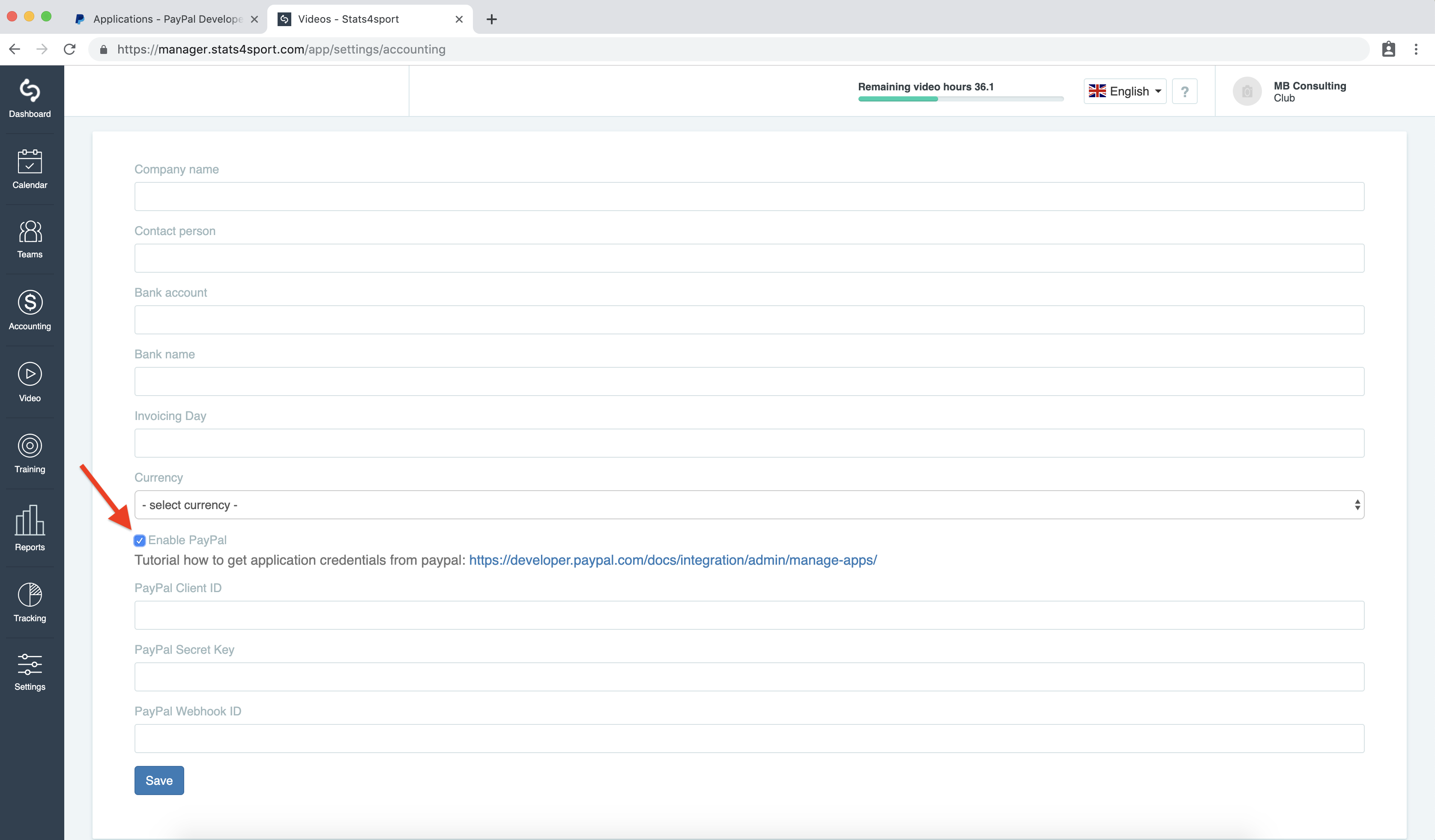
Enable PayPal integration
-
9
Now is very important to copy "Client ID" from point 6 to the stats4sport manager as shown in the picture below and click save
-
10
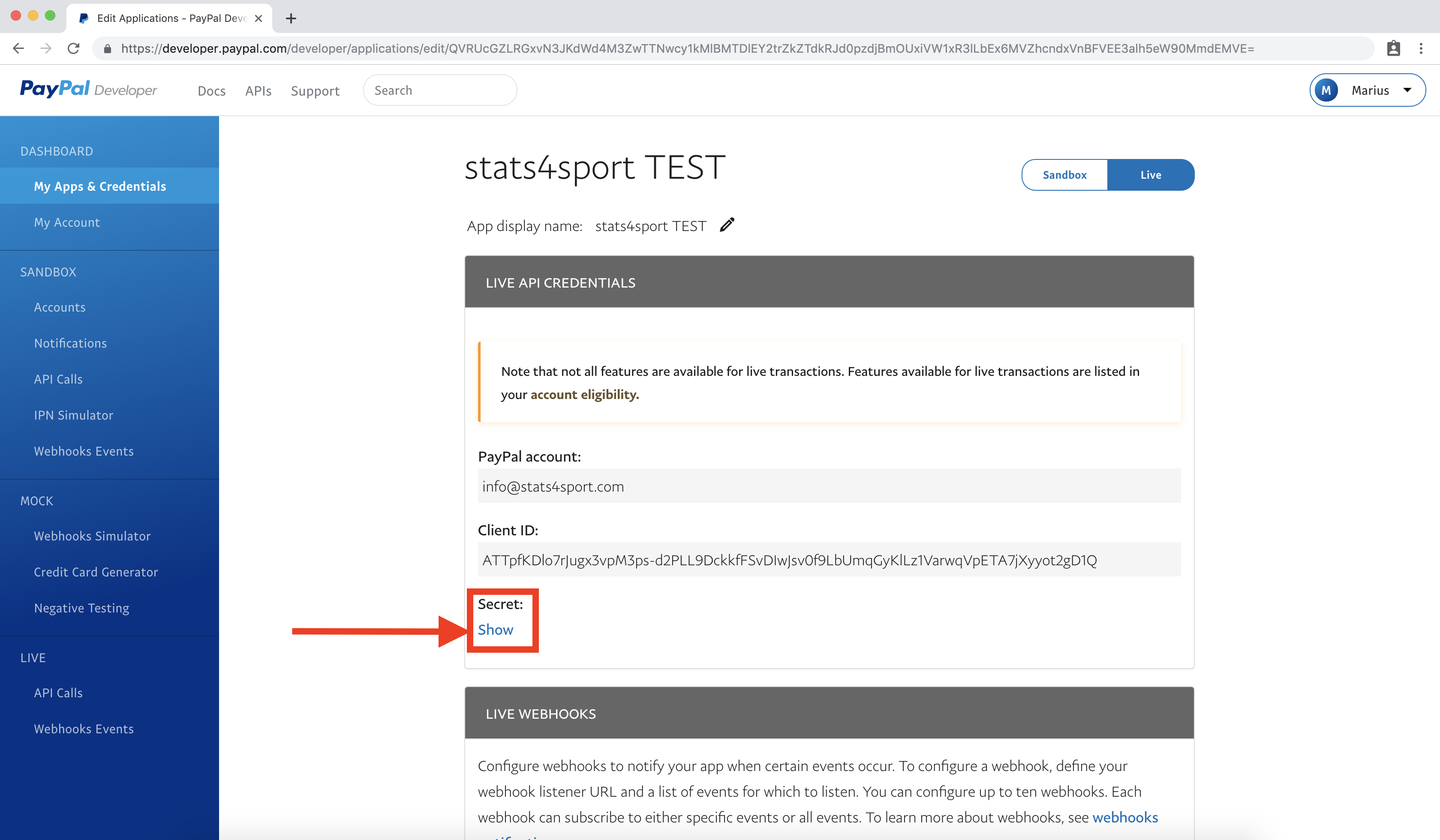
Second step is to press on "show" link to open the PayPal "secret key"
-
11
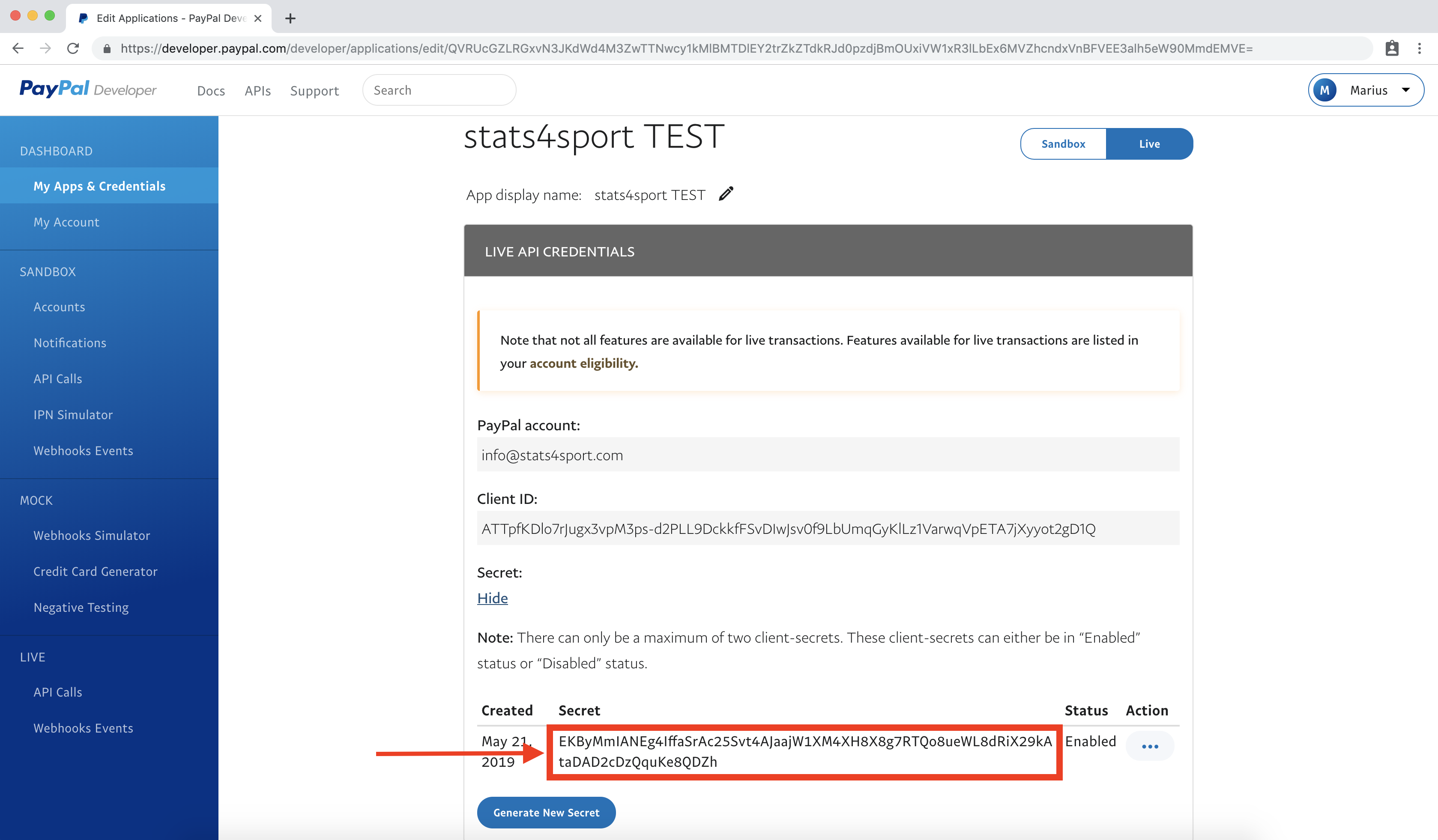
Now the "secret key" apeared, follow the next picture
-
12
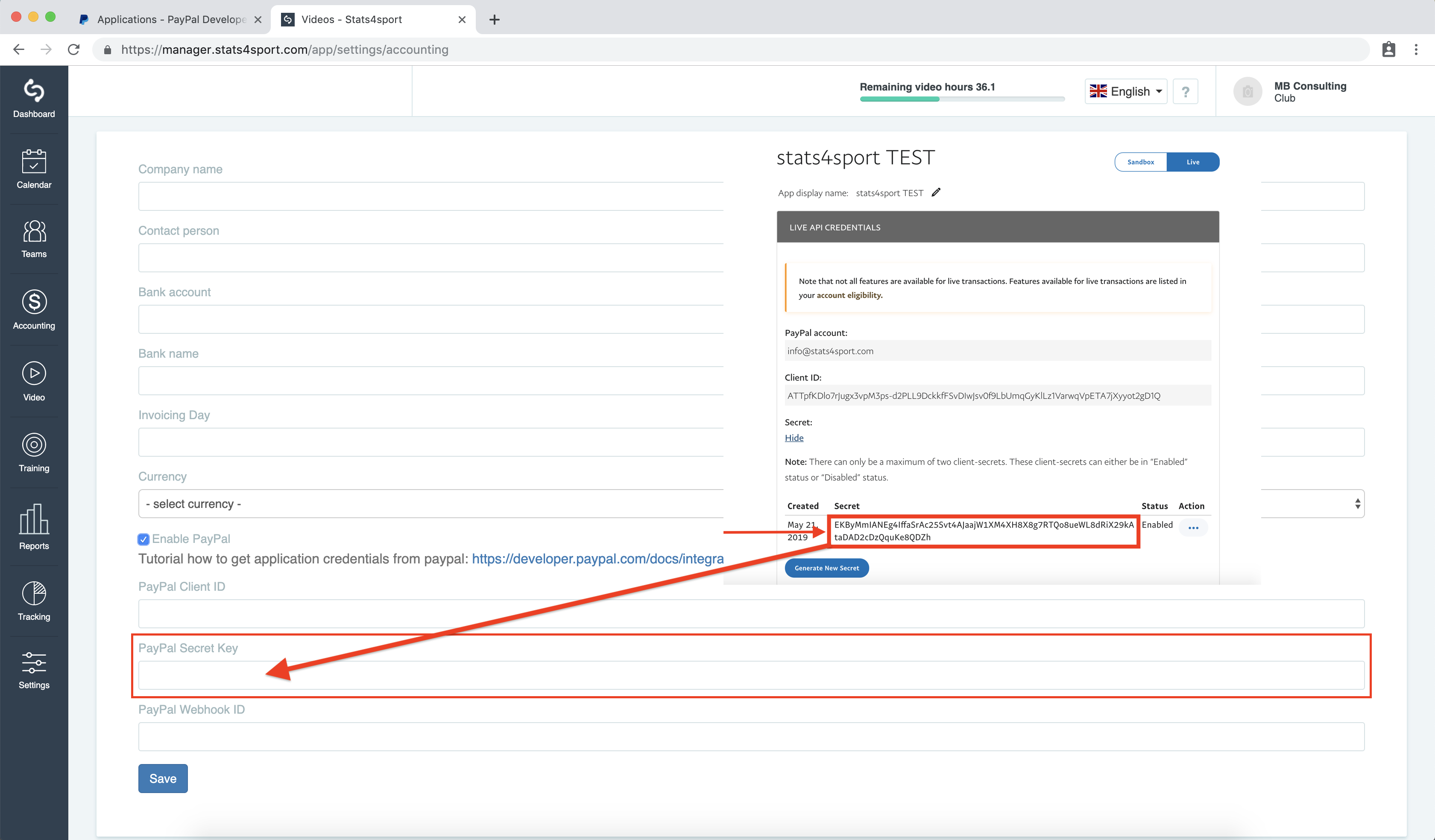
Copy the "secret key" to the stats4sport manager and click save
-
13
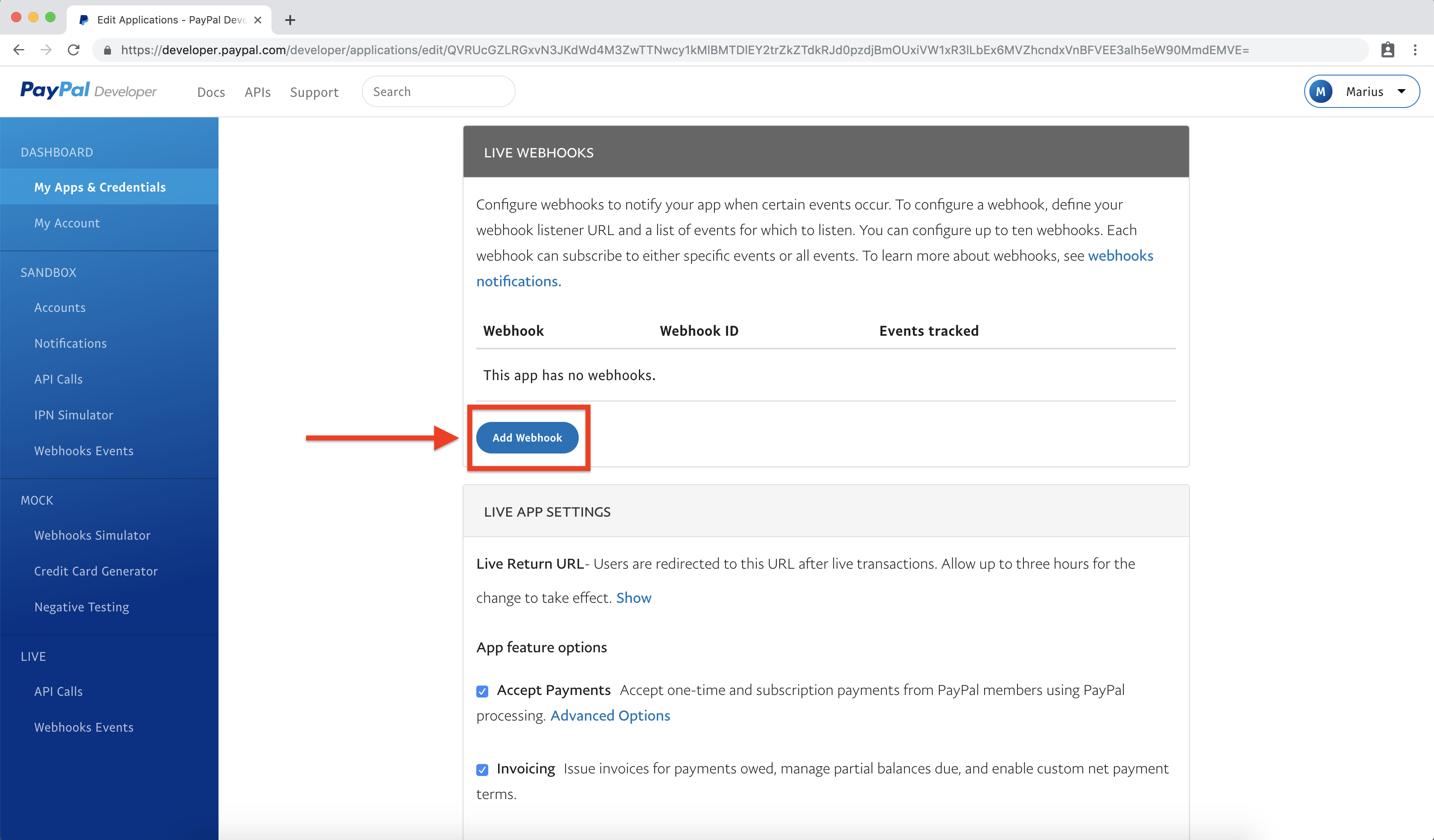
Third step is to add "webhook to the stats4sport manager. At the same window in PayPal developer account click on the "webhook" button
-
14
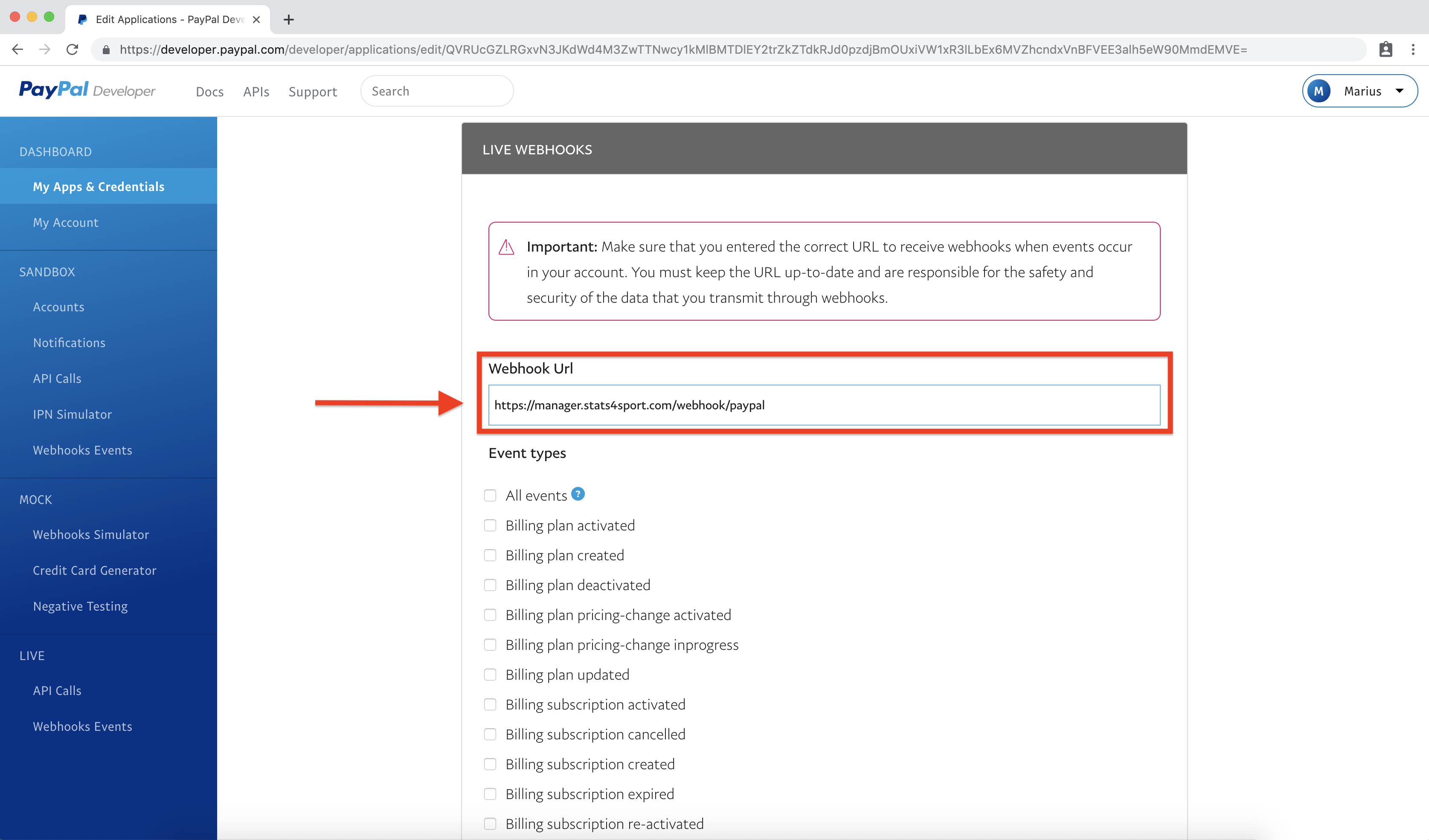
Now you have to enter the correct adress to the field is shown in the picture and here as well - https://manager.stats4sport.com/webhook/paypal - to create "webhook"
-
15
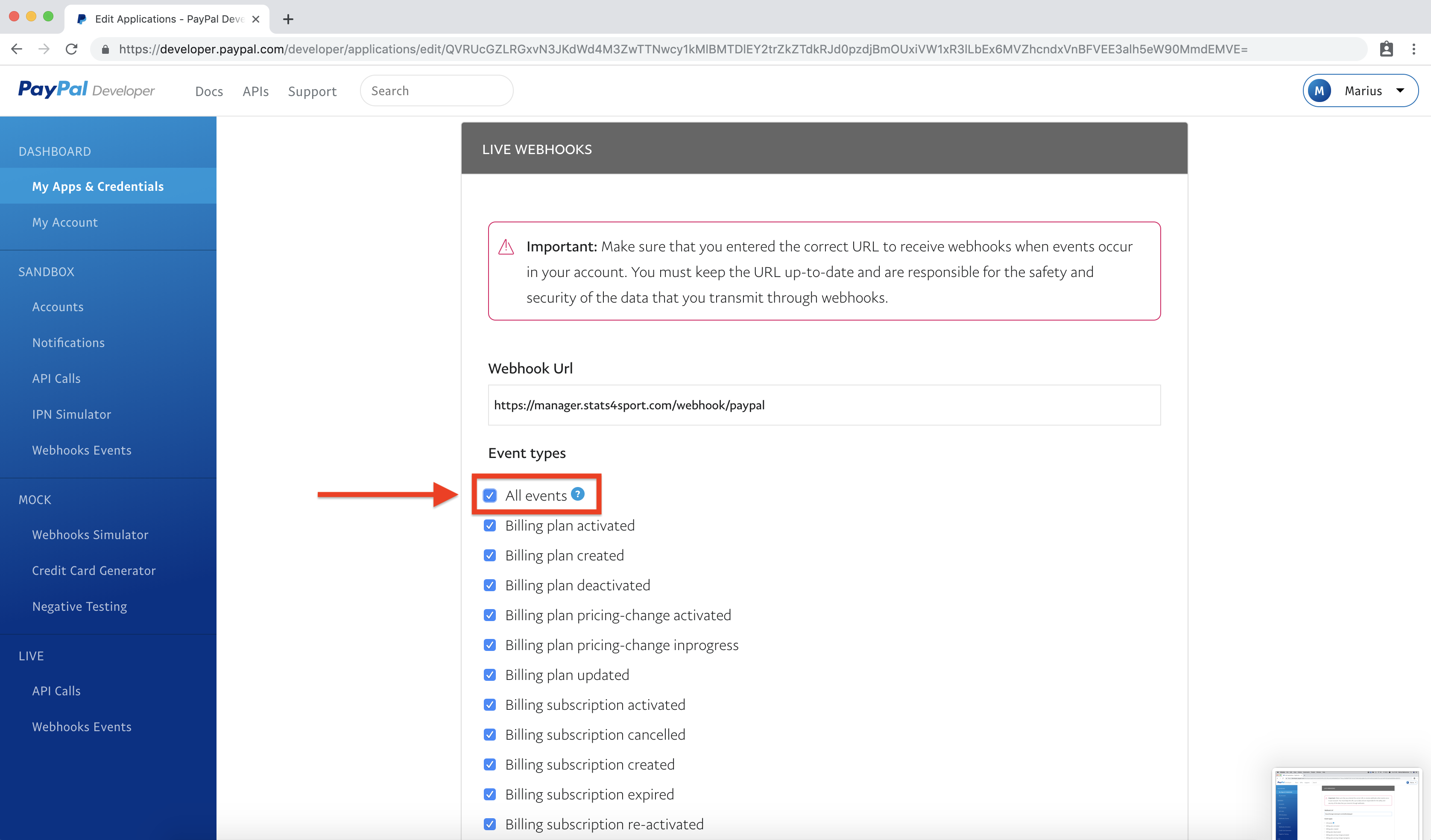
After you paste the adress also mark the "All events" field and click save at the bottom of the page
-
16
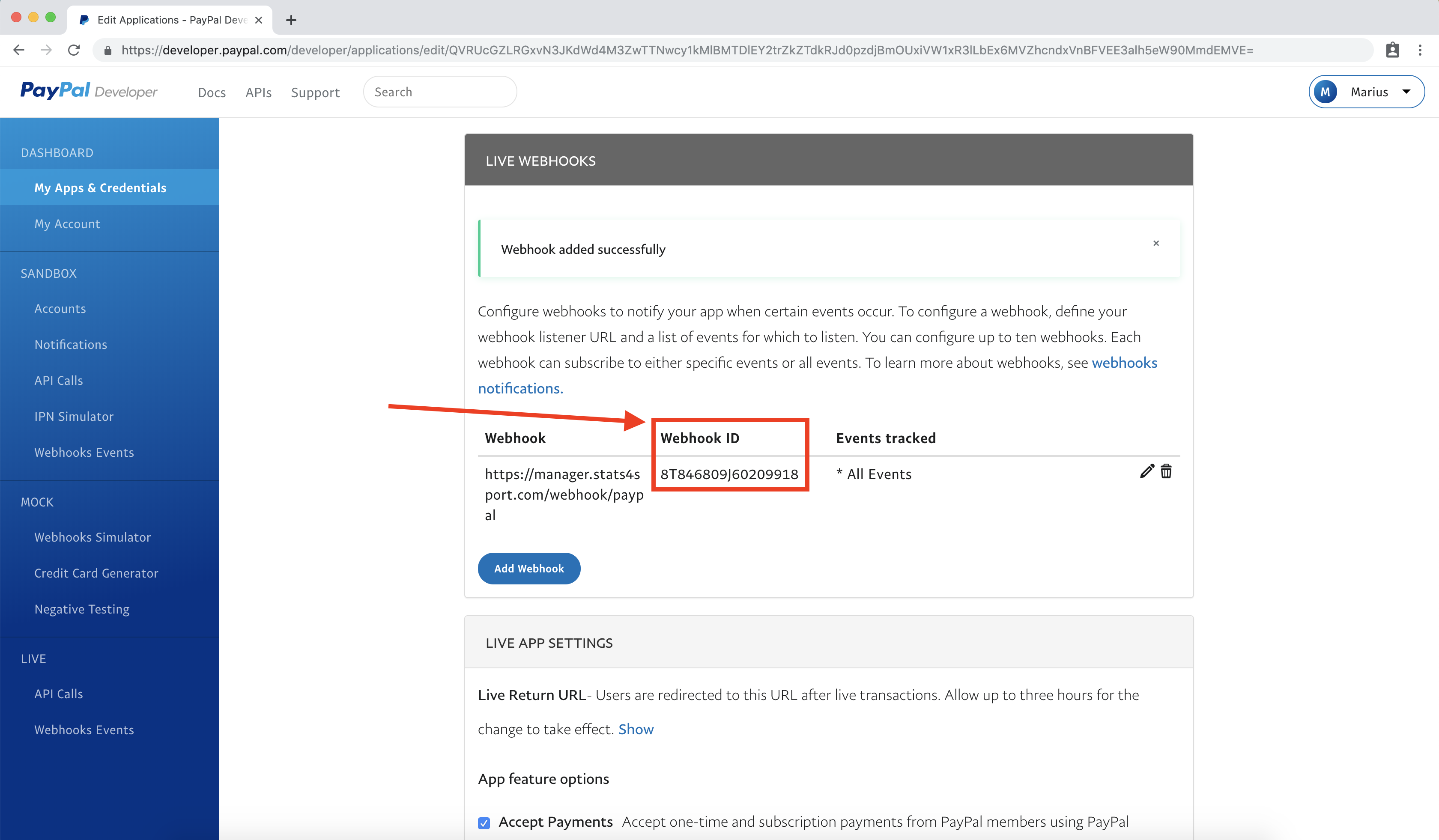
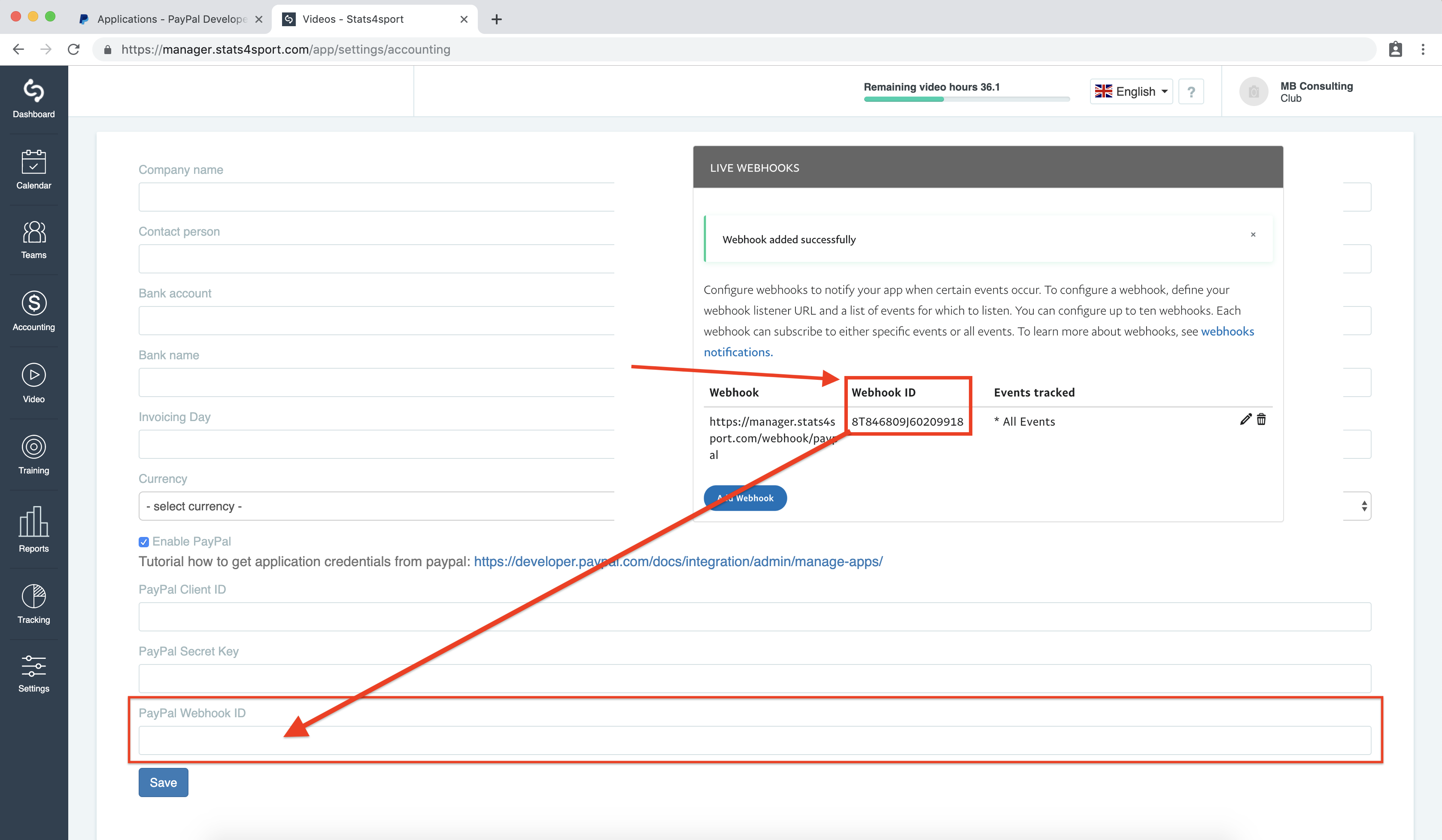
Your "webhook ID" is ready to paste in to the stats4sport manager
-
17
The final step is to copy "webhook ID" and paste it in to manager, after you paste it don't forget to click save button
-
18
Well Done ! now your account is ready, PayPal transactions prepared to use.
Still need help?
Tell our support team where you got stuck. Include the guide title so we can help you faster.
Contact support